

Email through Microsoft Graph
AgentWatch can send its email through Microsoft Graph instead of an SMTP server. This is the right choice for a Microsoft 365 tenant that has turned SMTP AUTH off, which Microsoft recommends. There is no mailbox password and no SMTP port. AgentWatch signs in as an Entra app with a client secret and asks Graph to send each message from one mailbox you choose.
Available from AgentWatch 2.0.424. Every email AgentWatch sends goes through the provider you pick here: welcome and API-key emails, key rotation, one-time sign-in codes, budget warnings and rate-limit alarms.
What do I need before I start?
Section titled “What do I need before I start?”| Item | Notes |
|---|---|
| A Microsoft Entra role that can register apps and grant consent | Application Administrator, Cloud Application Administrator or Global Administrator |
| A sender mailbox in Exchange Online | A shared mailbox such as agentwatch@contoso.com is ideal. It needs no license and nobody signs in to it. A licensed user mailbox also works |
| AgentWatch 2.0.424 or later | curl -s https://agentwatch.contoso.com/health shows the version |
| A company admin in AgentWatch | Or a super admin, to set the platform’s default sender |
| Outbound HTTPS from the AgentWatch server | To login.microsoftonline.com and graph.microsoft.com on port 443 |
How does it work?
Section titled “How does it work?”- AgentWatch requests an access token from
https://login.microsoftonline.com/<tenant>/oauth2/v2.0/tokenwith the client-credentials grant and the scopehttps://graph.microsoft.com/.default. The token is cached and renewed about five minutes before it expires. - For each email it builds a normal MIME message (HTML and plain text) and posts it to
POST https://graph.microsoft.com/v1.0/users/<sender>/sendMail. Graph answers202 Acceptedand delivers it from that mailbox. - By default a copy is not kept in the mailbox’s Sent Items, so a no-reply box does not fill up.
The client secret is stored in the AgentWatch database and is never shown again
after you save it. The console shows •••••••• (secret saved) instead.
Step 1 — Register the app in Microsoft Entra
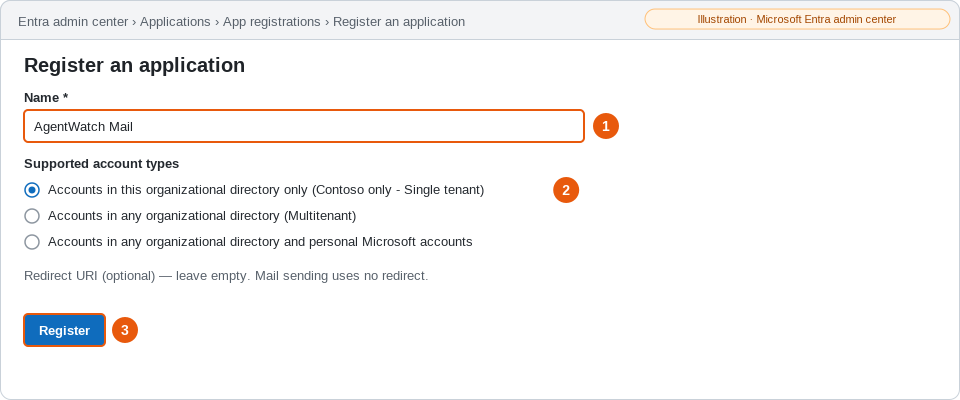
Section titled “Step 1 — Register the app in Microsoft Entra”- Open the Microsoft Entra admin center → Identity → Applications → App registrations → + New registration.
- Name:
AgentWatch Mail(any name). - Supported account types: Accounts in this organizational directory only (Single tenant).
- Redirect URI: leave empty. Sending mail uses no redirect.
- Click Register.
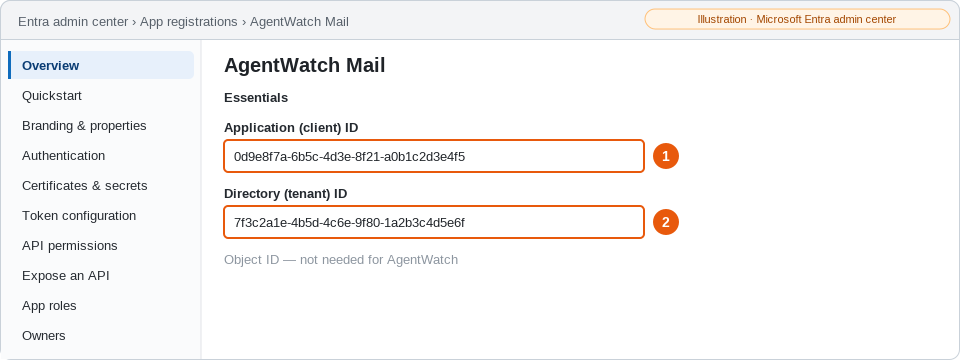
On the app’s Overview page, copy two values. You will paste them into AgentWatch in step 5:
- Application (client) ID
- Directory (tenant) ID
Step 2 — Create a client secret
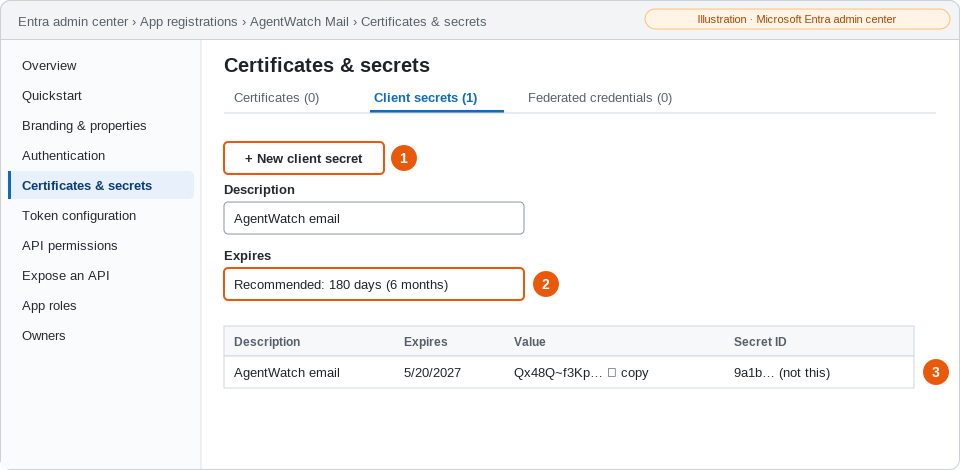
Section titled “Step 2 — Create a client secret”- In the app, open Certificates & secrets → Client secrets → + New client secret.
- Description:
AgentWatch email. Expires: choose what your policy allows. The portal recommends 180 days. - Click Add, then copy the Value immediately. It is shown only once.
The Secret ID next to it is not the secret. Pasting the ID is the most
common setup mistake, and it fails with
AADSTS7000215.
Put the expiry date in your calendar. When the secret expires, email stops and
Send test email reports The client secret is wrong or has expired. To renew
it, create a new secret, paste its Value into AgentWatch and save. You can delete
the old secret afterwards.
Step 3 — Give the app permission to send mail
Section titled “Step 3 — Give the app permission to send mail”Choose one of the two options. Option B is recommended for production, because Option A lets the app send as any mailbox in your tenant.
Option A — Mail.Send for the whole tenant (simplest)
Section titled “Option A — Mail.Send for the whole tenant (simplest)”- In the app, open API permissions → + Add a permission → Microsoft Graph → Application permissions.
- Search for
Mail.Send, tick it, and click Add permissions. - Click Grant admin consent for
and confirm. The status column must read Granted for .
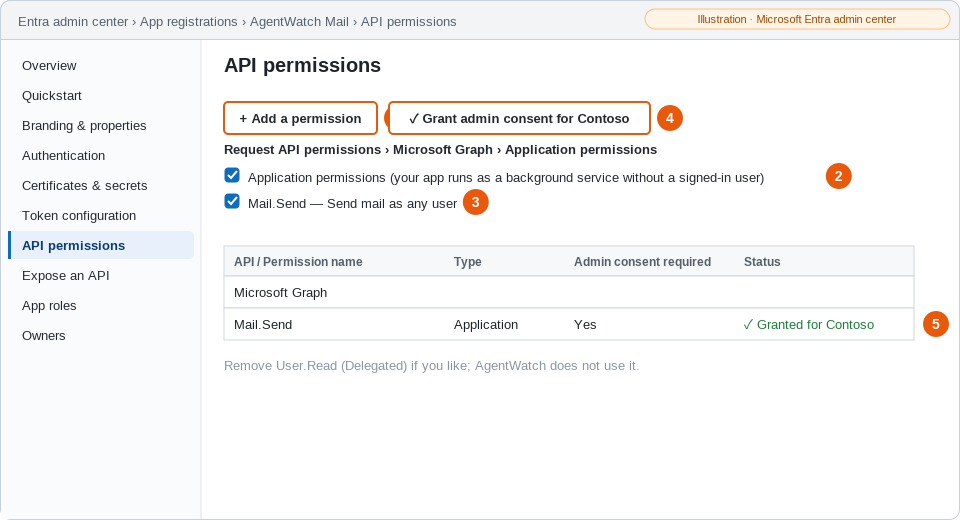
It must be an Application permission. A Delegated Mail.Send does nothing
for AgentWatch, because no user signs in. Graph answers 401 or 403.
Option B — Mail.Send for one mailbox only (Exchange RBAC for Applications)
Section titled “Option B — Mail.Send for one mailbox only (Exchange RBAC for Applications)”Microsoft’s current way to limit an app to specific mailboxes is RBAC for
Applications in Exchange Online. It replaces the older Application Access
Policies. You grant the permission in Exchange with a scope, and do not
grant Mail.Send in Entra. Grants in Entra and in Exchange add up, so an Entra
grant would remove the restriction.
You need the Exchange Administrator role. Run this in PowerShell with the ExchangeOnlineManagement module:
Connect-ExchangeOnline
# 1. A pointer to the app. Use the IDs from Entra > Enterprise applications >#    "AgentWatch Mail" (NOT App registrations: the Object ID there differs).New-ServicePrincipal -AppId "0d9e8f7a-6b5c-4d3e-8f21-a0b1c2d3e4f5" `  -ObjectId "<Enterprise application Object ID>" -DisplayName "AgentWatch Mail"
# 2. A scope that matches only the sender mailbox.New-ManagementScope -Name "AgentWatch sender" `  -RecipientRestrictionFilter "PrimarySmtpAddress -eq 'agentwatch@contoso.com'"
# 3. Allow the app to send as mailboxes in that scope, and nothing else.New-ManagementRoleAssignment -App "0d9e8f7a-6b5c-4d3e-8f21-a0b1c2d3e4f5" `  -Role "Application Mail.Send" -CustomResourceScope "AgentWatch sender"
# 4. Check: InScope should be True for the sender, False for anyone else.Test-ServicePrincipalAuthorization -Identity "0d9e8f7a-6b5c-4d3e-8f21-a0b1c2d3e4f5" -Resource agentwatch@contoso.comTest-ServicePrincipalAuthorization -Identity "0d9e8f7a-6b5c-4d3e-8f21-a0b1c2d3e4f5" -Resource ceo@contoso.com
If you already granted Mail.Send in Entra under Option A, remove it under
API permissions → Mail.Send → Remove permission. Otherwise the scope has
no effect. Exchange can take up to an hour to apply a new role assignment, so a
test email right after step 3 may still return 403.
Step 4 — Decide which mailbox sends
Section titled “Step 4 — Decide which mailbox sends”AgentWatch sends as the From Address you set in the console, unless you fill in Sender mailbox:
| From Address | Sender mailbox | Result |
|---|---|---|
agentwatch@contoso.com |
(empty) | Graph sends as agentwatch@contoso.com. Recommended. |
noreply@contoso.com |
agentwatch@contoso.com |
Graph sends from agentwatch@contoso.com with noreply@contoso.com in the From header. agentwatch@contoso.com needs Send As on noreply@contoso.com in Exchange, or Graph refuses with ErrorSendAsDenied |
The sender must exist in Exchange Online: a shared mailbox, or a licensed
user. An on-premises-only mailbox, or a user without an Exchange license, fails
with MailboxNotEnabledForRESTAPI.
Step 5 — Enter the values in AgentWatch
Section titled “Step 5 — Enter the values in AgentWatch”- Sign in to AgentWatch as a company admin and open Management → Company Settings → Email Notifications. (A super admin first picks the tenant in Configure email for tenant, or Platform (default sender).)
- Tick Enable Email Notifications.
- Email Provider: Microsoft 365 (Microsoft Graph).
- From Address: the sender mailbox, for example
agentwatch@contoso.com. From Name: what recipients see, for exampleAgentWatch. - Directory (tenant) ID and Application (client) ID: from step 1.
- Client secret (Value): from step 2.
- Sender mailbox (optional): leave empty unless you chose the second row in step 4.
- Click Save email settings, then Send test email.
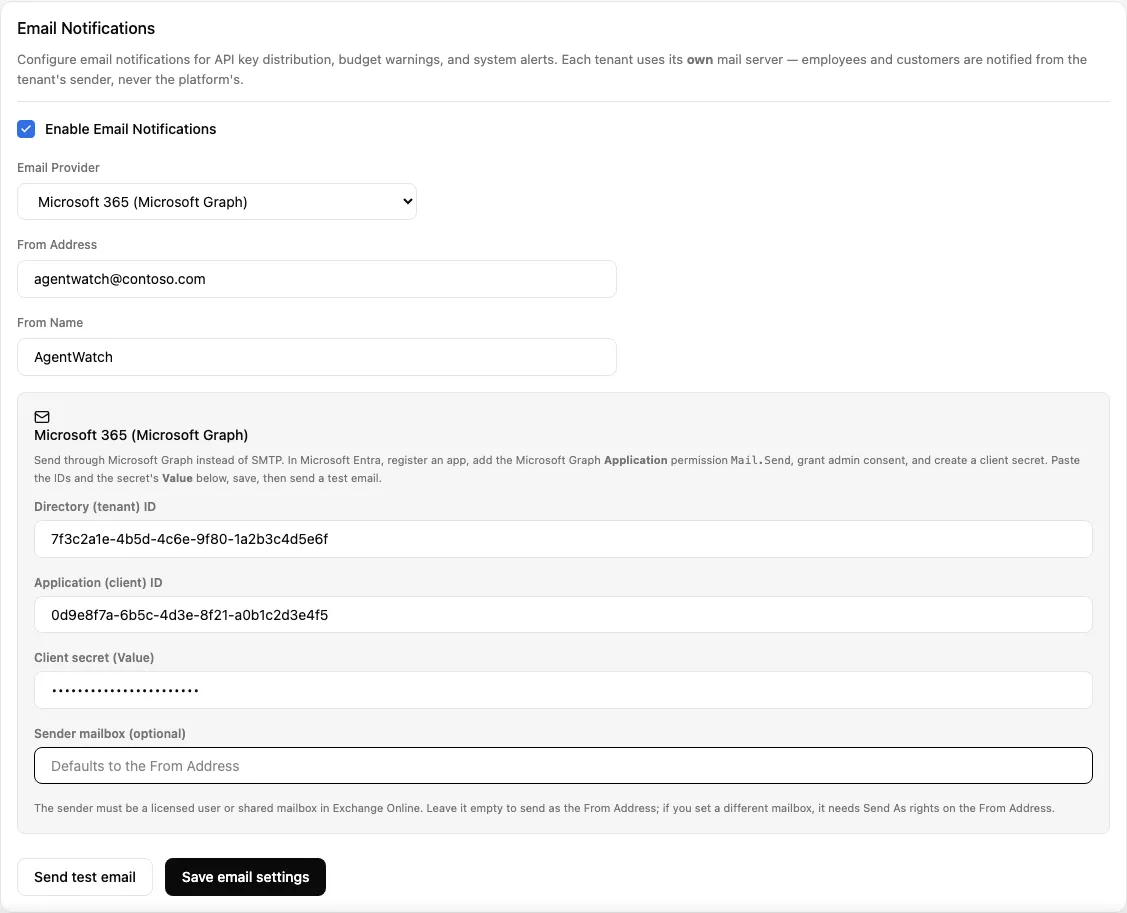
You should now see Test email sent successfully! Check your inbox. The
message arrives in your inbox (the admin who clicked) from the sender
mailbox, with the subject AgentWatch Email Test. If the test fails, the message
names the cause. See Troubleshooting.
Saving with the secret field empty keeps the stored secret, so you can change the other fields without pasting it again.
Can I set it up without the console?
Section titled “Can I set it up without the console?”Yes, two ways.
First boot, from the environment. On a new installation, the sender is seeded from these variables the first time AgentWatch starts. After that the database values win and you change them in the console:
NOTIFY_EMAIL_PROVIDER=microsoft-graphNOTIFY_EMAIL_FROM=agentwatch@contoso.comNOTIFY_MSGRAPH_TENANT_ID=7f3c2a1e-4b5d-4c6e-9f80-1a2b3c4d5e6fNOTIFY_MSGRAPH_CLIENT_ID=0d9e8f7a-6b5c-4d3e-8f21-a0b1c2d3e4f5NOTIFY_MSGRAPH_CLIENT_SECRET=<the secret Value># NOTIFY_MSGRAPH_SENDER=agentwatch@contoso.com # optional; defaults to NOTIFY_EMAIL_FROMThrough the API, as a company admin:
curl -s -X POST https://agentwatch.contoso.com/admin/company/settings \  -H "Authorization: Bearer $AW_ADMIN_JWT" -H "Content-Type: application/json" \  -d '{"emailEnabled":true,"emailProvider":"microsoft-graph",       "emailFromAddress":"agentwatch@contoso.com","emailFromName":"AgentWatch",       "msGraphTenantId":"7f3c2a1e-4b5d-4c6e-9f80-1a2b3c4d5e6f",       "msGraphClientId":"0d9e8f7a-6b5c-4d3e-8f21-a0b1c2d3e4f5",       "msGraphClientSecret":"<the secret Value>"}'
curl -s -X POST https://agentwatch.contoso.com/admin/company/settings/test-email \  -H "Authorization: Bearer $AW_ADMIN_JWT"
What about GCC High, DoD or other national clouds?
Section titled “What about GCC High, DoD or other national clouds?”The global cloud is the default. For a sovereign cloud, set both host names in the AgentWatch container’s environment and restart it:
| Cloud | AW_MSGRAPH_LOGIN_HOST |
AW_MSGRAPH_HOST |
|---|---|---|
| Global (default) | login.microsoftonline.com |
graph.microsoft.com |
| US Government GCC High | login.microsoftonline.us |
graph.microsoft.us |
| US Government DoD | login.microsoftonline.us |
dod-graph.microsoft.us |
| China (21Vianet) | login.chinacloudapi.cn |
microsoftgraph.chinacloudapi.cn |
GCC (not High) uses the global hosts.
Are there limits?
Section titled “Are there limits?”- 4 MB per message. Graph refuses larger messages on this call. AgentWatch’s own emails are a few kilobytes, so this matters only for an unusually large custom welcome text.
- Throttling. Exchange Online limits how much one mailbox can send per minute
and per day. A refused message is logged with
429. AgentWatch’s volume (alarms are de-duplicated) is far below these limits. - Each tenant sends from its own sender. With sub-tenants, each one configures its own provider. A tenant’s email is never sent from the platform’s sender.
Troubleshooting
Section titled “Troubleshooting”Send test email shows the cause in its message. The code in brackets is Microsoft’s, so you can search for it.
| Message (shortened) | Cause | Fix |
|---|---|---|
The client secret is wrong or has expired (… AADSTS7000215 …) |
The Secret ID was pasted, or the secret expired | Create a new secret and paste its Value (step 2) |
No app with this Application (client) ID exists in that tenant (… AADSTS700016 …) |
Client ID typo, or the tenant ID belongs to a different tenant | Copy both IDs from the app’s Overview page |
The Directory (tenant) ID is not a valid tenant (… AADSTS90002 …) |
Tenant ID typo | Copy it again, or use your *.onmicrosoft.com domain |
Graph rejected the token. Grant admin consent for Mail.Send (Application) (401) |
Admin consent missing, or a Delegated permission was added | Step 3, Option A, with Application permissions and Grant admin consent |
The app may not send as this mailbox … (403 ErrorAccessDenied) |
No Mail.Send grant, or an RBAC scope that excludes this mailbox |
Check step 3. With Option B, run Test-ServicePrincipalAuthorization against the sender and wait up to an hour after changes |
The From Address is not the sender mailbox … Send As (403 ErrorSendAsDenied) |
The From Address and Sender mailbox differ | Make them the same, or grant Send As (step 4) |
The sender mailbox was not found or has no Exchange Online mailbox (404 ErrorInvalidUser / MailboxNotEnabledForRESTAPI) |
Address typo, an on-premises mailbox, or no Exchange license | Use a shared mailbox or licensed user in Exchange Online |
Microsoft Graph email needs: … |
A field is empty | Fill in the named fields and save |
Graph is throttling this mailbox (429) |
Too many messages in a short time | It clears by itself. Use a dedicated shared mailbox |
| Test succeeds but nobody receives anything | Mail-flow rules, quarantine or junk filtering on the recipient side | Check Exchange admin center → Mail flow → Message trace for the subject AgentWatch Email Test |
| Times out | The AgentWatch server cannot reach Microsoft | Allow outbound 443 to login.microsoftonline.com and graph.microsoft.com, or set your proxy for the container |
The AgentWatch container log also records every failure as
[EmailService] Failed to send email: followed by the same message.
Sources and references
Section titled “Sources and references”- Microsoft Graph — user: sendMail (MIME format,
202 Accepted,saveToSentItems) - Microsoft identity platform — OAuth 2.0 client credentials flow
- Exchange Online — Role Based Access Control for Applications
- Microsoft Graph — National cloud deployments
- Related: Self-hosted rollout with Microsoft 365 · Configuration & Admin