

Deploying Connect on macOS with an MDM
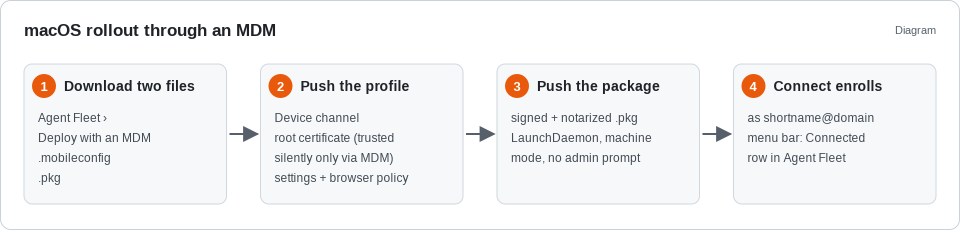
On a Mac, AgentWatch Connect needs two things pushed by your MDM, both downloaded from Agent Fleet → Deploy with an MDM:
- The configuration profile (
agentwatch-connect.mobileconfig). It carries your organization’s Connect certificate, the Connect settings and browser policies. - The installer package (
AgentWatch-Connect-<version>-macos-universal.pkg), signed with Iterate’s Developer ID and notarized by Apple.
After both arrive, Connect enrolls the signed-in employee and switches interception on by itself. Nobody opens the app or types an administrator password.
Why an MDM is required. Since macOS 11, a root certificate is trusted silently only when an MDM installs it in a profile. No installer, script or root process can do it, and that includes an RMM script. If your RMM is also your Apple MDM, use its configuration profile feature, not a script, for the profile.
What do I need before I start?
Section titled “What do I need before I start?”| Item | Notes |
|---|---|
| Macs enrolled in your MDM | Supervised, or enrolled through Automated Device Enrollment, is ideal. User-approved MDM enrollment also works for device-level profiles |
| macOS 12 or later | Apple silicon and Intel; the package is universal |
| A device group | For example AgentWatch – macOS; start with a pilot of two or three Macs |
| An enrollment token | Agent Fleet → Agent Connect Settings → Enrollment Token. The settings download refuses without one |
| Employees in AgentWatch | SSO with SCIM or Auto-create users, CSV import, or Employee Management → Add |
Step 1 — Download the two files
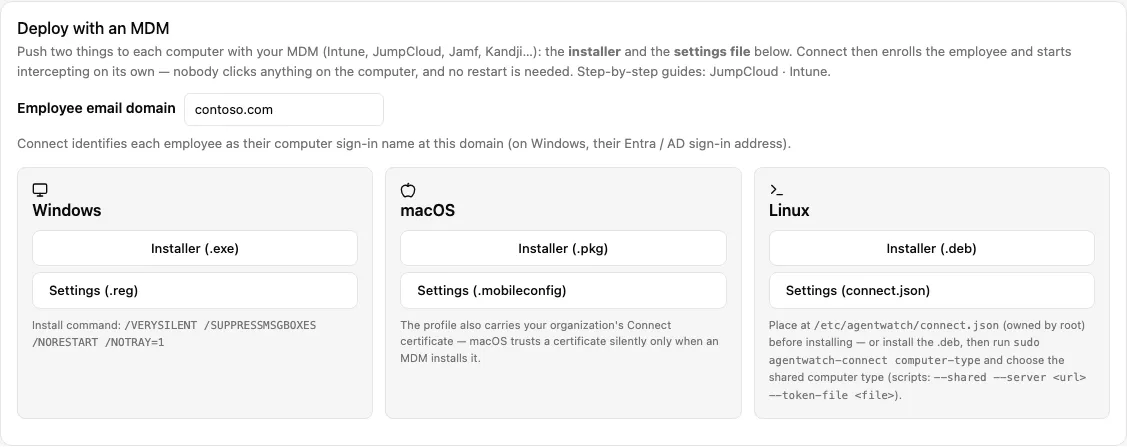
Section titled “Step 1 — Download the two files”In AgentWatch open Agent Fleet → Deploy with an MDM, type your Employee
email domain (for example contoso.com), then under macOS click
Installer (.pkg) and Settings (.mobileconfig).
The profile contains:
- your organization’s AgentWatch Connect root certificate (
com.apple.security.root); - the Connect settings
ServerURL,EnrollmentTokenandEmailDomain(payloadai.iterate.agentwatch-connect, read from/Library/Managed Preferences/ai.iterate.agentwatch-connect.plist); - Chrome, Edge and Brave policies that turn off DNS-over-HTTPS, the built-in DNS client and QUIC, so browsers use the resolver Connect steers;
- a Firefox policy that trusts enterprise roots and turns off DNS-over-HTTPS.
It is marked not removable by the user. Upload it unchanged. Each download
is recorded in Settings → Audit Logs as fleet.mdm_config_downloaded.
Who is the employee? Connect uses <macOS short name>@EmailDomain, for
example jdoe → jdoe@contoso.com. If short names at your company do not match
email addresses, add an Email key with your MDM’s per-user variable to the
ai.iterate.agentwatch-connect payload (for example Intune’s {{mail}}; Jamf Pro
and Kandji have their own variables, so check your MDM’s list), then check the file with plutil -lint agentwatch-connect.mobileconfig.
An unsubstituted variable is ignored safely. Otherwise the affected employees
approve a one-time sign-in code once.
Step 2 — Push the profile (device level)
Section titled “Step 2 — Push the profile (device level)”The profile must be installed at device level, the device channel or computer level depending on your MDM. A user-level profile does not make the certificate trusted for the whole Mac. Neither does a profile the user installs by double-clicking it. In that case Agent Fleet keeps showing the Mac with CA trusted off.
Microsoft Intune
Section titled “Microsoft Intune”- Devices → macOS → Configuration → Create → New policy.
- Profile type: Templates → Custom → Create. Name it
AgentWatch Connect. - Custom configuration profile name:
AgentWatch Connect. Deployment channel: Device channel. Configuration profile file: uploadagentwatch-connect.mobileconfig. - Assignments:
AgentWatch – macOS→ Review + create.
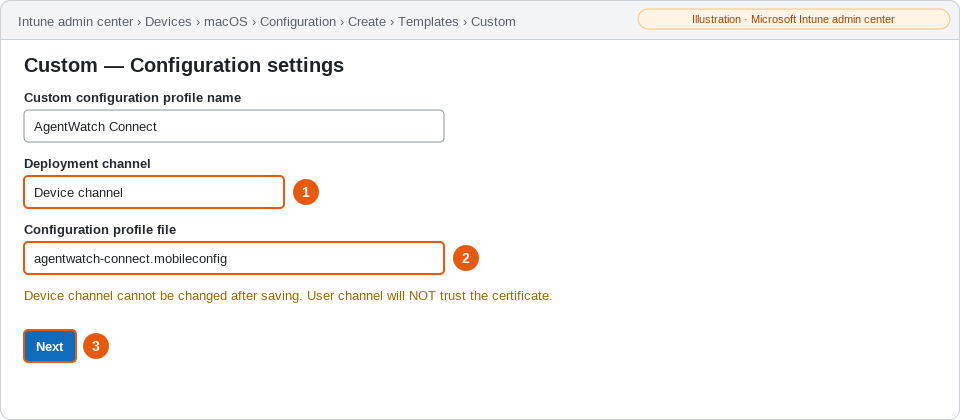
The deployment channel cannot be changed after saving. If you picked User channel by mistake, delete the profile and create it again.
JumpCloud
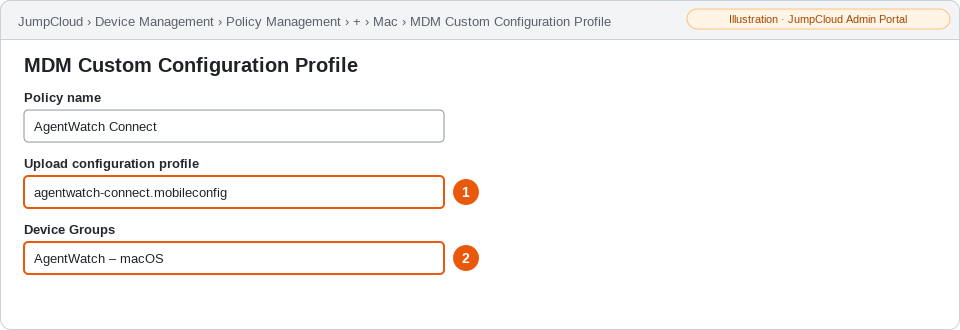
Section titled “JumpCloud”Device Management → Policy Management → + → the Mac tab → MDM Custom
Configuration Profile. Upload the file, bind the AgentWatch – macOS device
group on Device Groups, and Save.
Jamf Pro, Kandji and other MDMs
Section titled “Jamf Pro, Kandji and other MDMs”Upload the .mobileconfig as a custom / signed configuration profile at
computer (device) level and scope it to the pilot group. In Jamf Pro:
Computers → Configuration Profiles → Upload, Level: Computer Level.
In Kandji: Library → Add new → Custom Profile, uploaded to the Blueprint.
Do not rebuild the profile from its parts. The certificate, settings and browser
policies are meant to arrive together.
Step 3 — Push the package
Section titled “Step 3 — Push the package”Microsoft Intune
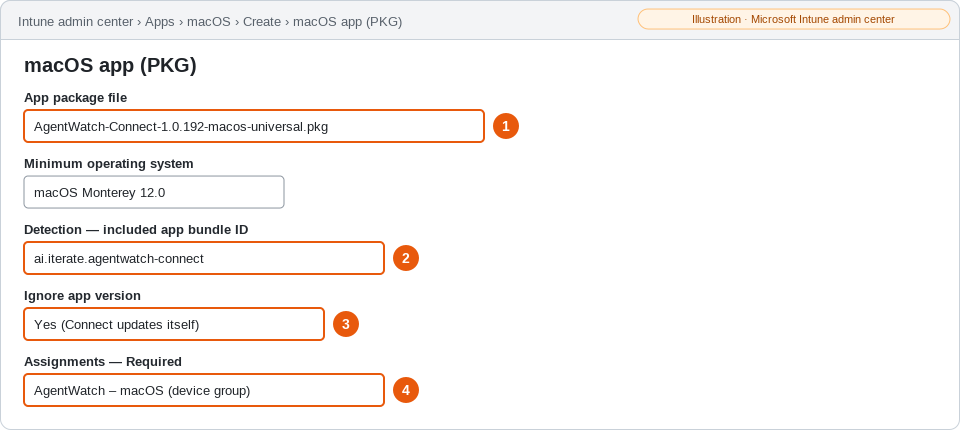
Section titled “Microsoft Intune”- Apps → macOS → Create → macOS app (PKG) → Select.
- App package file:
AgentWatch-Connect-<version>-macos-universal.pkg. NameAgentWatch Connect, publisherIterate Studio Inc. - Requirements: minimum operating system macOS 12.
- Detection rules: included app bundle ID
ai.iterate.agentwatch-connect. Ignore app version: Yes if Connect updates itself from AgentWatch (the default), No if you will update it through Intune. - Assignments: Required →
AgentWatch – macOS→ Review + create.
JumpCloud
Section titled “JumpCloud”Device Management → Software Management → Apple tab → + Add New → JumpCloud
Private Repo, upload the .pkg, bind AgentWatch – macOS, Save.
Jamf Pro, Kandji and other MDMs
Section titled “Jamf Pro, Kandji and other MDMs”Upload the .pkg as a package and install it with a policy (Jamf Pro: Settings →
Packages, then a policy with the Packages payload, trigger Recurring
Check-in, Once per computer), or as a Custom App (Kandji). It installs
silently as root.
The order of steps 2 and 3 does not matter. Connect waits for the profile and
redirects nothing until macOS trusts the certificate, so browsing is never broken
in between. Use the .pkg, not the .dmg: the .dmg is for installing by
hand and asks for an administrator the first time interception switches on.
Step 4 — Verify on a pilot Mac
Section titled “Step 4 — Verify on a pilot Mac”sudo profiles list | grep -i agentwatch # the profile is installedplutil -p "/Library/Managed Preferences/ai.iterate.agentwatch-connect.plist" # ServerURL, EnrollmentToken, EmailDomainsudo launchctl print system/ai.iterate.agentwatch-connect | grep state # state = runningtail -n 20 /Library/Logs/AgentWatch/connect.logThen:
- The menu-bar icon shows Connected.
- Agent Fleet lists the Mac Online within about a minute, with the employee’s email and CA trusted on.
- In a new browser tab, ask a public AI assistant something harmless. It appears in Usage Insights under that employee within seconds. Firefox picks up interception at its next restart.
Then widen the assignment in steps.
How do upgrades work?
Section titled “How do upgrades work?”Connect updates itself from your AgentWatch server according to Agent Fleet →
Fleet controls → Connect updates. Keep Ignore app version on (Intune) or the
equivalent, so the MDM does not “repair” an updated Mac back to the version you
uploaded. To manage versions from the MDM instead, pause updates in AgentWatch
and upload each new .pkg.
How do I remove Connect?
Section titled “How do I remove Connect?”Unassign the package first, then the profile, so Connect is gone before the certificate it relies on is withdrawn. See Endpoint Enrollment → How do I uninstall Connect? for the command that removes the app itself.
Troubleshooting
Section titled “Troubleshooting”| Symptom | Cause | Fix |
|---|---|---|
| Agent Fleet shows CA trusted off | The profile was installed at user level or by hand | Push it from the MDM on the device channel / at computer level |
plutil says the managed preferences file does not exist |
The profile has not arrived, or was uploaded as user level | Check the profile’s status in the MDM, then sudo profiles list |
| Menu bar asks for an administrator password | The .dmg was installed instead of the .pkg |
Deploy the .pkg (Connect 1.0.148 or later) |
| The employee sees a sign-in code | shortname@EmailDomain is not an employee in AgentWatch |
Add the Email key with your MDM’s variable, provision the employee, or let them approve the code once |
| Chrome still bypasses Connect | A Chrome policy from another profile turns DNS-over-HTTPS back on | Check chrome://policy for DnsOverHttpsMode; the AgentWatch profile sets it to off |
| Nothing in Usage Insights | The tab was open before interception started | Use a new tab, or wait a minute |
Sources and references
Section titled “Sources and references”- Deploying Connect with Microsoft Intune · with JumpCloud — the full per-MDM pages, including Windows and Linux
- Endpoint Enrollment — how Connect works and how a computer is tied to an employee
- Self-hosted rollout with Microsoft 365 — the whole rollout in order
- Apple — Certificates payload settings
- Microsoft — Add a macOS PKG app to Intune