

Install AgentWatch Connect on Windows
AgentWatch Connect is the endpoint agent that brings AI traffic from a Windows computer under AgentWatch governance: it redirects known AI services to a local service, inspects the request, stamps the employee’s identity and forwards it to your AgentWatch gateway. This page is the Windows walkthrough, from download to a verified computer in Agent Fleet. For how enrollment works across all platforms, see Endpoint Enrollment; for Linux, see Install Connect on Linux.
What do I need before installing?
Section titled “What do I need before installing?”| Requirement | Detail |
|---|---|
| Windows version | Windows 10 version 1809 (build 17763) or later, or Windows 11. 64-bit (x64) only |
| Administrator rights | Needed once, when Setup runs. Afterwards an employee without admin rights can configure Connect and switch interception on and off |
| Your AgentWatch address | The https:// address you open the console with, for example https://agentwatch.acme.com — the bare origin, with no path |
| An employee in AgentWatch | The person who will use the computer must exist in Employee Management (added by hand, by CSV, by SCIM, or by SSO Auto create users) |
| Network access | The computer must reach your AgentWatch address on port 443. If the network allows web traffic only through a corporate proxy, have the proxy address ready — see How do I use Connect behind a corporate proxy? |
| For an organization-wide rollout | The enrollment token from Agent Fleet → Agent Connect Settings → Enrollment Token |
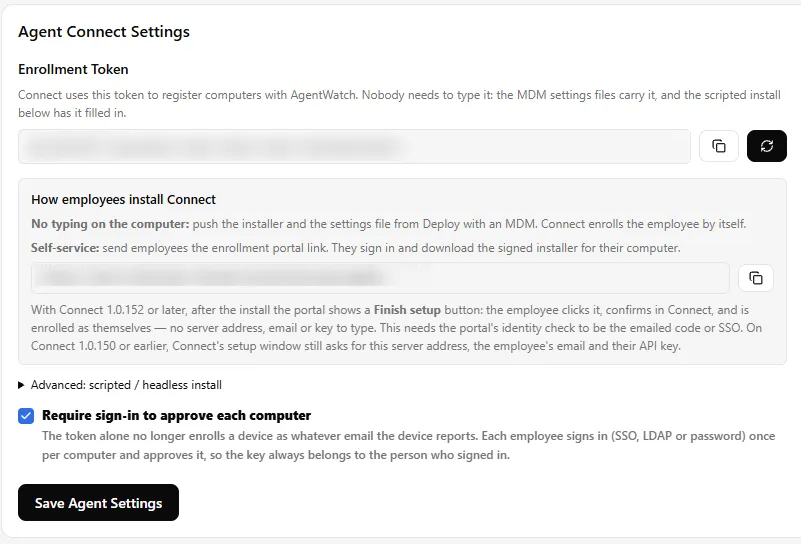
The enrollment token and the portal link are both in Agent Fleet → Agent Connect Settings. The copy button beside the token copies it; the circular-arrow button issues a new one (enrolled computers keep working). Leave Require sign-in to approve each computer ticked unless every computer gets its employee from your MDM: with it on, the token alone enrolls nobody.
Where do I download the installer?
Section titled “Where do I download the installer?”The installer is a single signed file, AgentWatch-Connect-Setup-<version>-windows-x64.exe.
Get it from any of these:
| Who | Where |
|---|---|
| An employee | The enrollment portal — Install Connect downloads the right installer for their computer. The link is in Agent Fleet → Agent Connect Settings |
| An employee already signed in to the console | My Dashboard → Download AgentWatch Connect |
| An administrator | Agent Fleet → Download AgentWatch Connect → Windows |
| IT, for an MDM | Agent Fleet → Deploy with an MDM → Windows → Installer, or directly from your server |
The server lists the current installer:
curl.exe -fsS https://agentwatch.acme.com/agent/version# {"latestVersion":"1.0.186", "installers":{"windows-x64":"/agent/bundle/AgentWatch-Connect-Setup-1.0.186-windows-x64.exe", ...}}
curl.exe -fsSLO https://agentwatch.acme.com/agent/bundle/AgentWatch-Connect-Setup-1.0.186-windows-x64.exe
Before running a downloaded copy, you can confirm the signature:
Get-AuthenticodeSignature .\AgentWatch-Connect-Setup-1.0.186-windows-x64.exe | Format-List Status, SignerCertificate# Status : Valid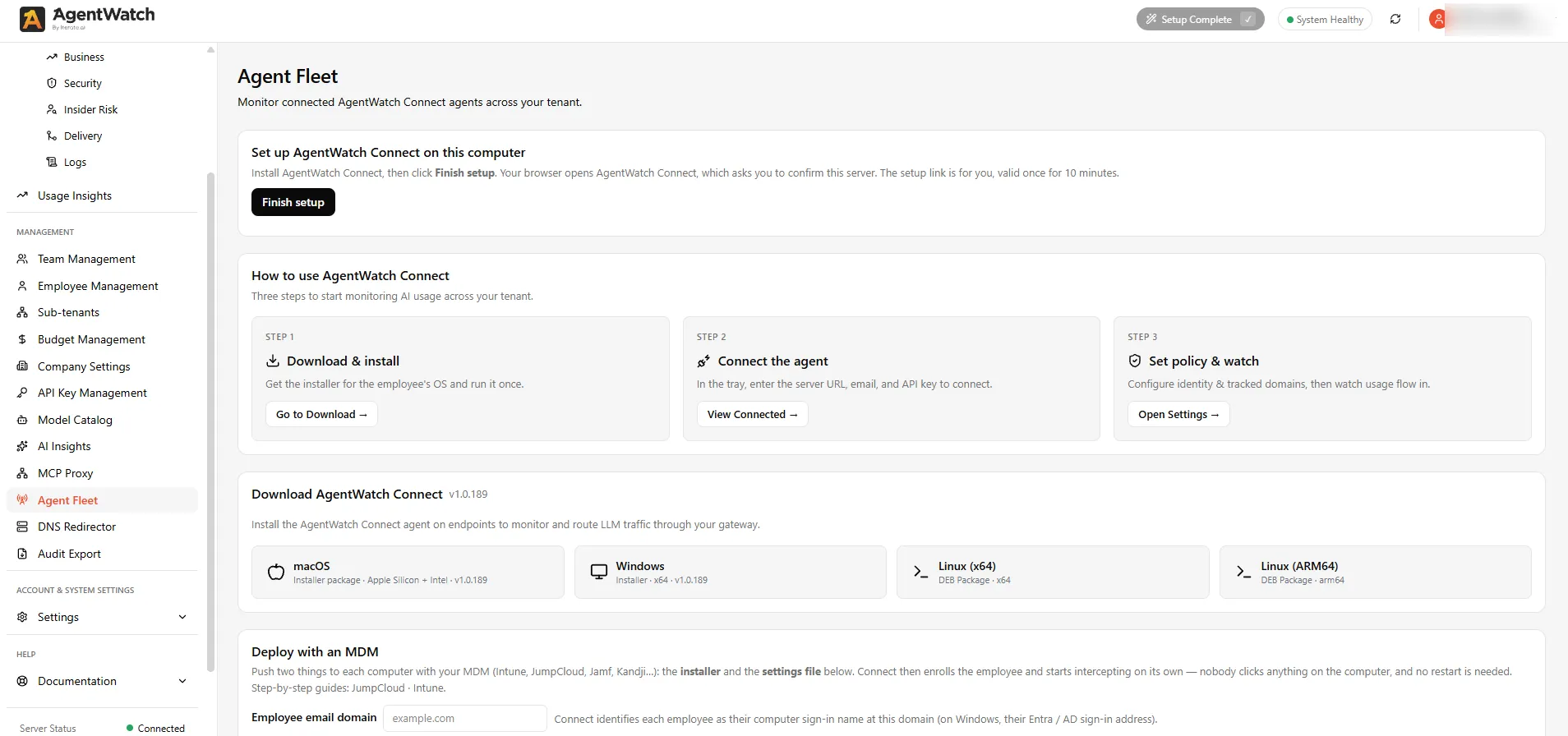
How do I install Connect on one computer?
Section titled “How do I install Connect on one computer?”This is the path for an employee’s own laptop, or for IT setting up a single computer by hand.
-
Run Setup. Double-click
AgentWatch-Connect-Setup-<version>-windows-x64.exeand approve the User Account Control prompt. -
Choose the install folder. Keep the default,
C:\Program Files\AgentWatch Connect, and click Next. Setup needs about 250 MB of free disk space.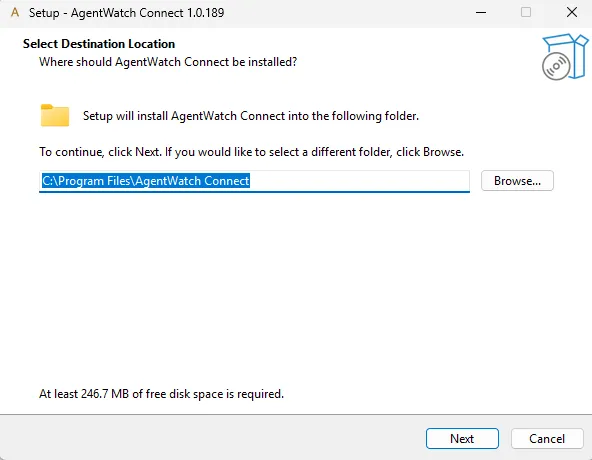
-
Choose additional shortcuts. Optionally tick Create a desktop shortcut, then Next.
-
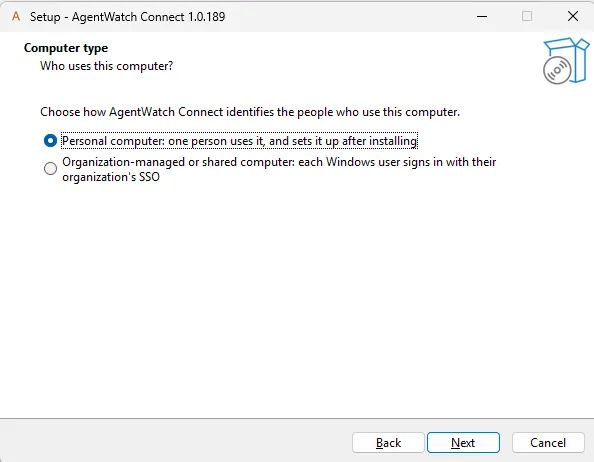
Choose the computer type. Setup asks Who uses this computer?
- Personal computer — one person uses it and finishes setup after installing. Choose this for an employee’s own laptop.
- Organization-managed or shared computer — each Windows user signs in with your organization’s SSO and is attributed as themselves. Choose this for shared desktops, labs and RDP hosts; Setup then asks for the organization settings (next step). See Organization-Managed and Shared Computers for the full picture.
-
Organization settings (shared computers only). Enter the AgentWatch server URL (must start with
https://), the Enrollment token, and optionally the Email domain and Corporate proxy. Setup refuses to continue without anhttps://address and a token.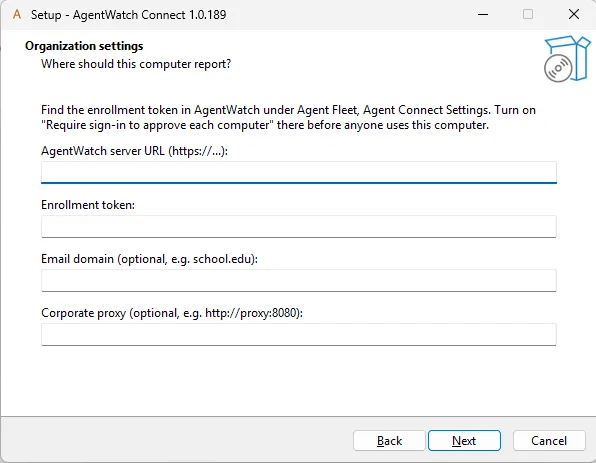
If Group Policy or an MDM already sets these values, Setup skips both pages and leaves the policy alone.
-
Install. Click Install. Setup copies Connect to
C:\Program Files\AgentWatch Connect, installs the Connect certificate for the whole computer, and registers the AgentWatchConnect service, which starts at every boot. Click Finish; the AgentWatch Connect icon appears in the notification area. -
Connect it to your organization — see the next section.
How do I connect the computer to my organization?
Section titled “How do I connect the computer to my organization?”A personal install needs to know which server and which employee. Use whichever of these fits; all of them leave Connect holding that employee’s own gateway key.
Option A — Finish setup from the enrollment portal (recommended)
Section titled “Option A — Finish setup from the enrollment portal (recommended)”Needs Connect 1.0.152 or later and a portal whose identity check is SSO or the emailed code (Settings → Enrollment Portal → Identity & access).
- Open the portal link and sign in.
- Click Finish setup. The browser asks to open AgentWatch Connect — allow it.
- Connect shows Connect this computer to agentwatch.acme.com? Click Connect.
- Connect switches interception on and shows Connected as jane.doe@acme.com. Windows needs no further prompt.
An administrator setting up their own computer can skip the portal: the Finish setup button at the top of Agent Fleet (Set up AgentWatch Connect on this computer) does the same.
If nothing happens when you click Finish setup, copy the setup link the portal shows, open AgentWatch Connect, choose Finish setup with a code and paste it. Codes are single use and valid for 10 minutes; Get a new code on the portal issues another.
Option B — Sign in from the Connect window
Section titled “Option B — Sign in from the Connect window”Open AgentWatch Connect from the Start menu or the notification-area icon and fill in the setup form: Portal Address (your AgentWatch address), the employee’s email and their API key (from My Dashboard). Click Enable Interception.
Option C — Enroll from an administrator PowerShell
Section titled “Option C — Enroll from an administrator PowerShell”For IT repairing or preparing a single computer. Open PowerShell as
Administrator and use the full path, because the install folder is not on
PATH in an elevated session:
& "C:\Program Files\AgentWatch Connect\agentwatch-connect.exe" enroll ` --server https://agentwatch.acme.com ` --token aw-enroll-0b6f… ` --email jane.doe@acme.comA successful run prints Enrollment successful!, the user and the server. Write
each flag and its value as two words (--server https://…), never
--server=https://…. The console shows this command with your server and token
filled in under Agent Fleet → Agent Connect Settings → Advanced: scripted /
headless install.
What if Connect shows a sign-in code?
Section titled “What if Connect shows a sign-in code?”On an organization-managed or shared computer — or whenever Require sign-in to approve each computer is on and Connect cannot prove who the person is — Connect asks the person to approve the computer once:
-
The AgentWatch Connect window shows Authorize your account with a short code, for example
ABCD-1234. Managed by your organization at the bottom means the settings came from your IT, so there is no off switch.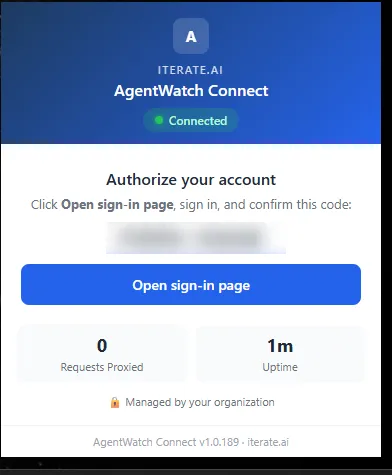
-
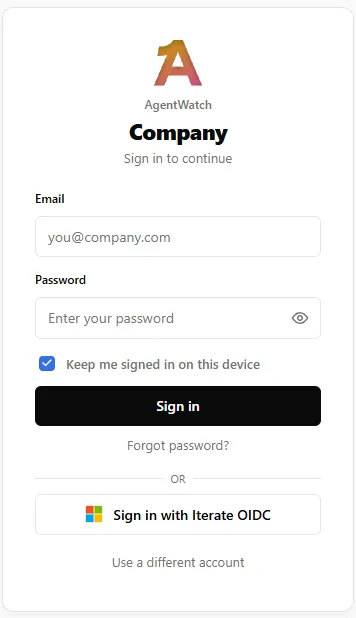
Click Open sign-in page. Your organization’s AgentWatch sign-in opens in the browser. Sign in with your email and password, or with your organization’s SSO button (its name is the SSO provider’s name, here Sign in with Iterate OIDC).
-
Check that the code and the computer name match what Connect shows, and click Approve. Connect switches to Connected as that person within a few seconds.
The code is per person and per computer. If the window was closed, click the AgentWatch Connect icon in the notification area to see it again. On a shared computer each Windows user does this once, the first time they use an AI site.
How do I install Connect silently or from a script?
Section titled “How do I install Connect silently or from a script?”Setup takes the standard silent switches plus its own organization settings. Run from an administrator PowerShell:
.\AgentWatch-Connect-Setup-1.0.186-windows-x64.exe /VERYSILENT /SUPPRESSMSGBOXES /NORESTART /NOTRAY=1 ` /SERVERURL=https://agentwatch.acme.com ` /ENROLLMENTTOKEN=aw-enroll-0b6f… ` /EMAILDOMAIN=acme.com| Switch | Effect |
|---|---|
/SILENT or /VERYSILENT |
No wizard (/VERYSILENT also hides the progress window) |
/SUPPRESSMSGBOXES |
No message boxes |
/NORESTART |
Never restart the computer — Connect never needs one |
/NOTRAY=1 |
Do not start the tray icon at the end of Setup. Use it when Setup runs as SYSTEM (an MDM or a startup script), where nobody would see it; the icon starts at each user’s next sign-in |
/SERVERURL= |
Writes ServerURL into the managed settings |
/ENROLLMENTTOKEN= |
Writes EnrollmentToken |
/EMAILDOMAIN= |
Writes EmailDomain |
/UPSTREAMPROXY= |
Writes UpstreamProxy |
/PERUSER=1 |
Writes PerUserIdentity = 1 — attribute each Windows user separately |
/LOG="C:\Windows\Temp\AgentWatch-Setup.log" |
Write an install log |
Do not combine /LOG with /ENROLLMENTTOKEN. Setup writes its command line
into the log, so the token would be stored in a file other users can read. For
an MDM rollout, push the settings separately (registry) and log the installer
alone — that is how the Intune and
JumpCloud recipes do it.
The computer enrolls itself within about a minute of the service starting: it works out the employee from the settings and the signed-in user, and only if it cannot does the employee see a one-time sign-in code.
Which settings can I configure?
Section titled “Which settings can I configure?”Connect reads its managed settings from the registry, at a location only administrators and SYSTEM can write:
HKEY_LOCAL_MACHINE\SOFTWARE\Policies\AgentWatch\Connect| Value | Type | Example | Purpose |
|---|---|---|---|
ServerURL |
REG_SZ |
https://agentwatch.acme.com |
Required. Your AgentWatch address |
EnrollmentToken |
REG_SZ |
aw-enroll-0b6f… |
Required (or apiKey). Identifies your organization; the computer exchanges it for the employee’s own key |
Email |
REG_SZ |
jane.doe@acme.com |
The employee, when the computer belongs to one known person |
EmailDomain |
REG_SZ |
acme.com |
Fallback identity <Windows sign-in name>@acme.com when the computer is not domain- or Entra-joined |
apiKey |
REG_SZ |
ak_… |
One employee’s gateway key instead of a token — only for a computer that belongs to one known person |
UpstreamProxy |
REG_SZ |
http://proxy.acme.com:8080 or direct |
The corporate proxy Connect uses to reach AI sites |
PerUserIdentity |
REG_SZ or REG_DWORD |
1 |
Attribute each Windows user separately (shared computers, RDP hosts) |
Every value is read as a string; a REG_DWORD is read as its decimal number and
multi-string values are ignored. Always write the 64-bit view — from a
32-bit process add /reg:64:
reg.exe add "HKLM\SOFTWARE\Policies\AgentWatch\Connect" /v ServerURL /t REG_SZ /d "https://agentwatch.acme.com" /f /reg:64reg.exe add "HKLM\SOFTWARE\Policies\AgentWatch\Connect" /v EnrollmentToken /t REG_SZ /d "aw-enroll-0b6f…" /f /reg:64reg.exe add "HKLM\SOFTWARE\Policies\AgentWatch\Connect" /v EmailDomain /t REG_SZ /d "acme.com" /f /reg:64Restart-Service AgentWatchConnectThe ready-made agentwatch-connect.reg from Agent Fleet → Deploy with an MDM
→ Windows → Settings contains ServerURL, EnrollmentToken and
EmailDomain for your organization; import it with
reg.exe import agentwatch-connect.reg /reg:64.
Group Policy. Connect ships an administrative template. Copy
AgentWatchConnect.admx and the en-US folder from
C:\Program Files\AgentWatch Connect\policy\ into your Central Store
(\\<domain>\SYSVOL\<domain>\Policies\PolicyDefinitions\), then edit a GPO under
Computer Configuration → Policies → Administrative Templates → AgentWatch →
AgentWatch Connect. It exposes server URL, enrollment token, email domain,
corporate proxy and Identify each Windows user separately.
How the employee is worked out, in order: Email in the settings → the
signed-in Windows user’s Entra ID / Active Directory sign-in address (UPN) on
domain- or Entra-joined computers → <sign-in name>@EmailDomain → a one-time
sign-in approval in the browser. With Agent Fleet → Agent Connect Settings →
Require sign-in to approve each computer on, every computer is approved by
whoever signs in.
How do I use Connect behind a corporate proxy?
Section titled “How do I use Connect behind a corporate proxy?”If the network allows web traffic out only through an explicit proxy (Cisco SWG, Zscaler, Netskope…), Connect must send its upstream traffic through it. Connect looks for a proxy in this order:
UpstreamProxyin the managed settings (or/UPSTREAMPROXY=at install)- the
HTTPS_PROXYenvironment variable - the Windows WinHTTP proxy
To copy the browser’s proxy into WinHTTP from an administrator prompt:
netsh winhttp import proxy source=ienetsh winhttp show proxyPAC files are not evaluated — if your network uses one, set UpstreamProxy
explicitly. If the proxy re-signs TLS (TLS inspection), Connect 1.0.147 and later
trust the Windows certificate store automatically; otherwise exempt your
AgentWatch address from inspection on the proxy.
How do I check that it is working?
Section titled “How do I check that it is working?”-
The icon. The AgentWatch Connect icon in the notification area shows Connected.
-
The service. From PowerShell:
Terminal window Get-Service AgentWatchConnect # Status: Running& "C:\Program Files\AgentWatch Connect\agentwatch-connect.exe" status[System.Net.Dns]::GetHostAddresses('api.openai.com') # 127.0.0.1 — routed through Connect -
The console. Within about 30 seconds the computer appears under Agent Fleet with Proxy running, CA trusted and Hosts active.
-
Real traffic. Open chatgpt.com or claude.ai in a browser opened after Connect started, send a harmless message, and look in Usage Insights: the request appears under the employee within a few seconds.
For a fuller self-check, run agentwatch-connect.exe diagnose from the install
folder.
Where are the files and logs?
Section titled “Where are the files and logs?”| What | Path |
|---|---|
| Program | C:\Program Files\AgentWatch Connect\ |
| Service | AgentWatchConnect (starts at boot) |
| Configuration | C:\ProgramData\AgentWatch\ |
| Agent log | C:\ProgramData\AgentWatch\logs\agent.log |
| Service output / errors | C:\ProgramData\AgentWatch\logs\service.log, service-err.log |
| Install log | %TEMP%\agentwatch-install.log of the user who ran Setup |
| Automatic-update logs | C:\ProgramData\AgentWatch\updates\install-<version>.log |
C:\ProgramData is hidden by default — open the logs with
explorer C:\ProgramData\AgentWatch\logs. Send agent.log and the service logs
to support when a computer misbehaves.
How do upgrades work?
Section titled “How do upgrades work?”Run a newer Setup over the existing one, or let Connect update itself. Every
install keeps the configuration and repairs the permissions on
C:\ProgramData\AgentWatch, so a connected computer stays connected. Automatic
updates follow Agent Fleet → Fleet controls → Connect updates (everyone,
selected users only, or paused); on Connect 1.0.148 and later the service runs
the signed Setup silently, only if it is signed by the same publisher as the
Connect already installed. No restart is needed.
How do I uninstall Connect?
Section titled “How do I uninstall Connect?”Settings → Apps → Installed apps → AgentWatch Connect → Uninstall, or silently:
& "C:\Program Files\AgentWatch Connect\unins000.exe" /VERYSILENT /SUPPRESSMSGBOXES /NORESTARTThis removes the service, the hosts-file redirection and the Connect
certificate, restoring direct access to the AI services. Managed settings an
MDM or GPO placed under HKLM\SOFTWARE\Policies\AgentWatch\Connect are left —
remove them in the MDM or GPO, or a reinstall enrolls by itself again. To also
remove every user’s personal settings, run
"C:\Program Files\AgentWatch Connect\agentwatch-connect.exe" uninstall --purge
from an administrator prompt first. Full details, including cleanup after an
uninstall from Connect older than 1.0.150, are in
Endpoint Enrollment → How do I uninstall Connect?.
Troubleshooting
Section titled “Troubleshooting”| Symptom | Cause | Fix |
|---|---|---|
| Setup refuses to start, naming a minimum Windows version or an unsupported architecture | Windows older than 10 version 1809, or a non-x64 computer | Upgrade Windows; Connect for Windows is x64 only |
| Setup: Enter the AgentWatch server URL, starting with https:// | The server field is empty or http:// |
Enter your https:// console address with no path |
| Icon shows Disconnected after setup | Not yet connected to an employee, or (Connect 1.0.151 and earlier) the configuration folder had no usable permissions | Finish setup (above). On old versions install 1.0.152 or later; or click Enable Interception once and approve the prompt |
Usage: agentwatch-connect enroll --server <url> --token <enrollment-token> … |
A flag is missing, or written as --flag=value |
Give --server, --token and --email, each as --flag value |
Invalid JSON response from server |
--server / ServerURL has a path, or points at a login page or proxy |
Use the bare origin, for example https://agentwatch.acme.com |
This email is not provisioned and a sign-in code |
The email is not an employee in this organization | Add the employee in Employee Management (or via SCIM / CSV), or approve the code by signing in |
chatgpt.com / claude.ai answer 502 with AgentWatch local impersonate unavailable |
The network allows traffic only through a proxy and Connect is dialing direct | Set UpstreamProxy, or import the browser proxy into WinHTTP |
unable to get local issuer certificate, computer never appears in Agent Fleet |
A TLS-inspecting gateway re-signs the connection | Use Connect 1.0.147+ (trusts the Windows store), or exempt your AgentWatch address from inspection |
| Antivirus blocks a Connect component | The bundled browser-compatibility helper is flagged | Allow C:\Program Files\AgentWatch Connect\curl-impersonate\curl-impersonate.exe; the agent log names the reason |
| The off switch is missing; 403, managed by your organization | The computer has managed settings from an MDM or GPO | Intended. Remove the managed settings, or uninstall with administrator rights |
| ChatGPT / Claude stop loading after uninstalling | Uninstalled with Connect older than 1.0.150, which left the hosts entries | Run the cleanup in How do I uninstall Connect? |
Sources and references
Section titled “Sources and references”- Endpoint Enrollment — how enrollment, attribution and the certificate work on every platform
- Organization-Managed and Shared Computers — per-user identity on Windows
- Deploying Connect with Microsoft Intune and with JumpCloud — fleet rollouts
- Install Connect on Linux
- Shadow AI Discovery — what Connect detects and captures