

Deploying Connect on Windows with an RMM
An RMM (remote monitoring and management) tool runs scripts on your Windows computers as SYSTEM. That is all AgentWatch Connect needs: one script writes the settings, installs Connect silently, and the computer enrolls the signed-in employee by itself. Nobody clicks anything on the computer, and no restart is needed.
This page works with any RMM. The menus differ between products, so it names the settings every RMM has (run as SYSTEM, 64-bit PowerShell, secure variable, targets) rather than one product’s screens. If you use Microsoft Intune instead, see Deploying Connect with Microsoft Intune. For the installer itself, its switches and every setting, see Connect on Windows.
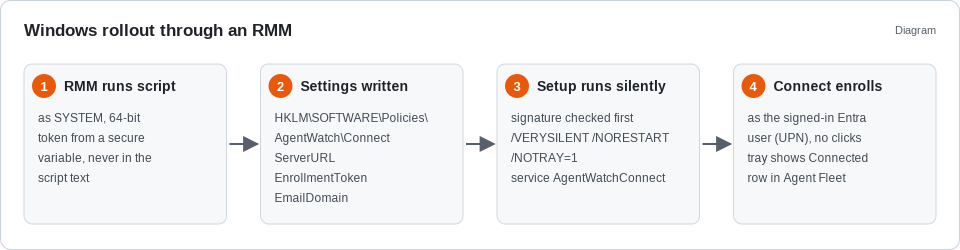
What do I need before I start?
Section titled “What do I need before I start?”| Item | Where to get it |
|---|---|
| Your AgentWatch address | For example https://agentwatch.contoso.com. The computers must reach it on port 443, and its certificate must be trusted by Windows. A certificate from your internal CA is fine if that CA is already trusted on your computers |
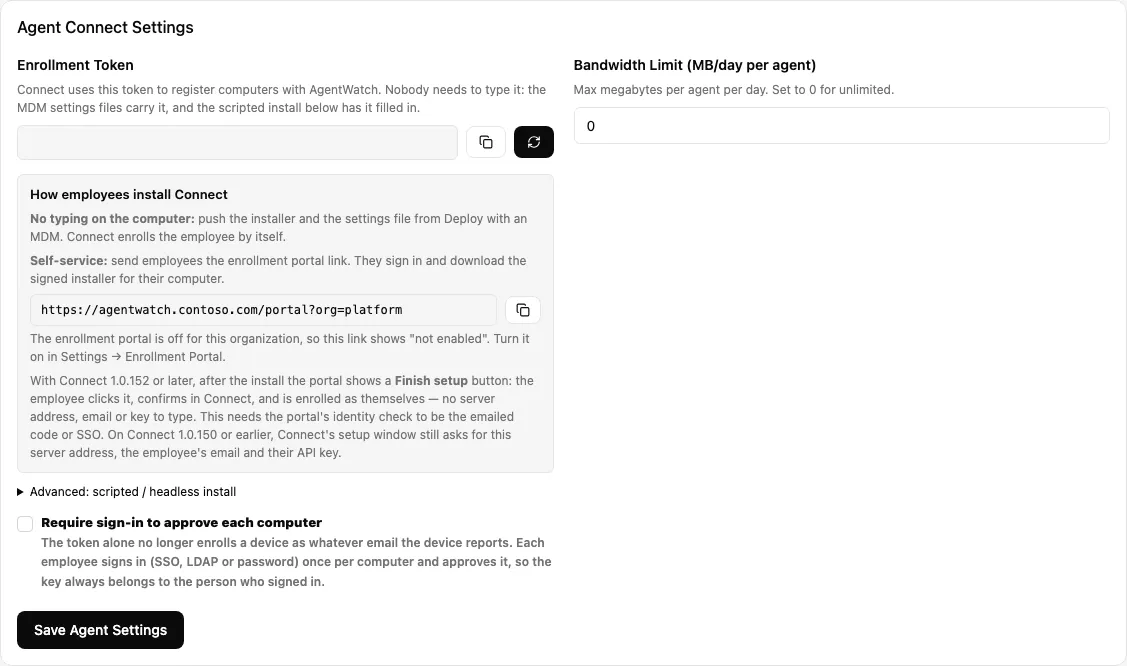
| An enrollment token | AgentWatch → Agent Fleet → Agent Connect Settings → Enrollment Token. If it is empty, click Regenerate token |
| Your employee email domain | For example contoso.com |
| Employees in AgentWatch | Through Entra SSO with SCIM provisioning or Auto-create users (see Self-hosted rollout with Microsoft 365), a CSV import, or Employee Management → Add |
| Windows 10 1809 or later, 64-bit | Setup refuses older builds |
How the computer knows who is using it. On an Entra-joined or hybrid-joined
PC, Connect reads the signed-in user’s Entra / Active Directory sign-in address
(UPN), for example jdoe@contoso.com. Otherwise it uses
<Windows sign-in name>@contoso.com. If that is an employee in AgentWatch,
the computer is enrolled as them with no prompt. Only if it is not does the
employee see a one-time sign-in code, which they approve with your normal
Microsoft sign-in.
The enrollment token is a secret. It identifies your organization, so anyone
holding it can try to enroll a computer into it. Keep it in your RMM’s secure
variable (also called a custom field, secure parameter or script
variable) rather than in the script text, and never on Setup’s command line
together with /LOG. If it leaks, click Regenerate token and update the
variable. Computers that are already enrolled keep working.
Step 1 — Create the script in your RMM
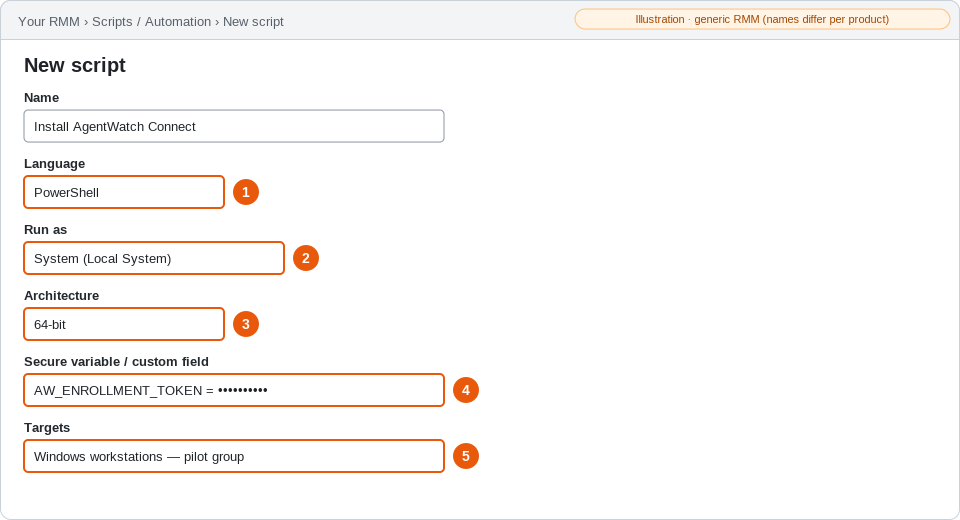
Section titled “Step 1 — Create the script in your RMM”Create a new PowerShell script with these options:
| RMM option | Set to | Why |
|---|---|---|
| Run as | System (Local System, NT AUTHORITY\SYSTEM) | Installing a service and writing HKLM need it |
| PowerShell | 64-bit | The script also writes the 64-bit registry view itself, so a 32-bit host is safe, but 64-bit is the norm |
| Timeout | 15 minutes | The download is about 50 MB |
| Secure variable | AW_ENROLLMENT_TOKEN = the token |
Kept out of the script text and the RMM’s script library |
Paste this script. Change the two lines marked CHANGE. Keep it ASCII only: Windows PowerShell 5.1 reads scripts as Windows-1252, and a pasted curly quote or dash breaks it.
# Install-AgentWatchConnect.ps1 - run by your RMM as SYSTEM.# ASCII only (Windows PowerShell 5.1 reads scripts as Windows-1252).$ErrorActionPreference = 'Stop'$ProgressPreference    = 'SilentlyContinue'   # makes Invoke-WebRequest fast on PS 5.1[Net.ServicePointManager]::SecurityProtocol = [Net.SecurityProtocolType]::Tls12
$ServerUrl   = 'https://agentwatch.contoso.com'   # CHANGE: your AgentWatch address$EmailDomain = 'contoso.com'                       # CHANGE: your employee email domain# The token comes from the RMM's secure variable. RMMs hand it over in one of# two ways: as an environment variable, or as a PowerShell variable the RMM# adds to the top of the script (Pulseway script inputs work this way).# Both are read here, so the same script works with either.$Token = $env:AW_ENROLLMENT_TOKENif (-not $Token -and (Test-Path variable:AW_ENROLLMENT_TOKEN)) { $Token = $AW_ENROLLMENT_TOKEN }if (-not $Token) { Write-Output 'AW_ENROLLMENT_TOKEN is empty - set the secure variable.'; exit 1 }
# 1. Settings, written to the 64-bit registry view whatever host runs this#    (Connect never reads WOW6432Node).$hklm = [Microsoft.Win32.RegistryKey]::OpenBaseKey('LocalMachine', 'Registry64')$key  = $hklm.CreateSubKey('SOFTWARE\Policies\AgentWatch\Connect')$key.SetValue('ServerURL', $ServerUrl, 'String')$key.SetValue('EnrollmentToken', $Token, 'String')$key.SetValue('EmailDomain', $EmailDomain, 'String')$key.Close()
# 2. Already installed? Connect updates itself, so the settings are all we needed.$uninstall = 'SOFTWARE\Microsoft\Windows\CurrentVersion\Uninstall\{8C7A4F0E-5C2A-4A9D-9E8B-2F4C5D3E1A6B}_is1'if ($hklm.OpenSubKey($uninstall)) { Write-Output 'AgentWatch Connect is already installed; settings updated.'; exit 0 }
# 3. Download the current installer from your AgentWatch server.$v   = Invoke-RestMethod -Uri "$ServerUrl/agent/version" -UseBasicParsing$rel = $v.installers.'windows-x64'if (-not $rel) { Write-Output 'The server lists no Windows installer.'; exit 1 }$url = if ($rel -match '^https?://') { $rel } else { $ServerUrl + $rel }$exe = Join-Path $env:TEMP (Split-Path $rel -Leaf)Invoke-WebRequest -Uri $url -OutFile $exe -UseBasicParsing
# 4. Run nothing that is not signed by Iterate.$sig = Get-AuthenticodeSignature -FilePath $exeif ($sig.Status -ne 'Valid' -or $sig.SignerCertificate.Subject -notmatch 'Iterate') {  Write-Output ("Signature check failed: " + $sig.Status + " " + $sig.SignerCertificate.Subject)  Remove-Item $exe -Force; exit 1}
# 5. Install silently. The token is in the registry, not on this command line,#    so writing a log is safe.$p = Start-Process -FilePath $exe -Wait -PassThru -ArgumentList `  '/VERYSILENT','/SUPPRESSMSGBOXES','/NORESTART','/NOTRAY=1','/LOG="C:\Windows\Temp\AgentWatch-Setup.log"'Remove-Item $exe -Force -ErrorAction SilentlyContinueif ($p.ExitCode -ne 0) { Write-Output ("Setup failed with exit code " + $p.ExitCode + "; see C:\Windows\Temp\AgentWatch-Setup.log"); exit $p.ExitCode }
# 6. Confirm the service is running.Start-Sleep -Seconds 5$svc = Get-Service -Name AgentWatchConnect -ErrorAction SilentlyContinueif (-not $svc -or $svc.Status -ne 'Running') { Write-Output 'Installed, but the AgentWatchConnect service is not running.'; exit 1 }Write-Output 'AgentWatch Connect installed and running.'exit 0
Prefer not to download from the computer? Most RMMs can attach a file to a
script or push it first. Download the installer once from Agent Fleet → Deploy
with an MDM → Windows → Installer (.exe), attach it, and replace step 3 with the
path the RMM puts it at, for example
$exe = Join-Path $PSScriptRoot 'AgentWatch-Connect-Setup-1.0.192-windows-x64.exe'.
Keep the signature check.
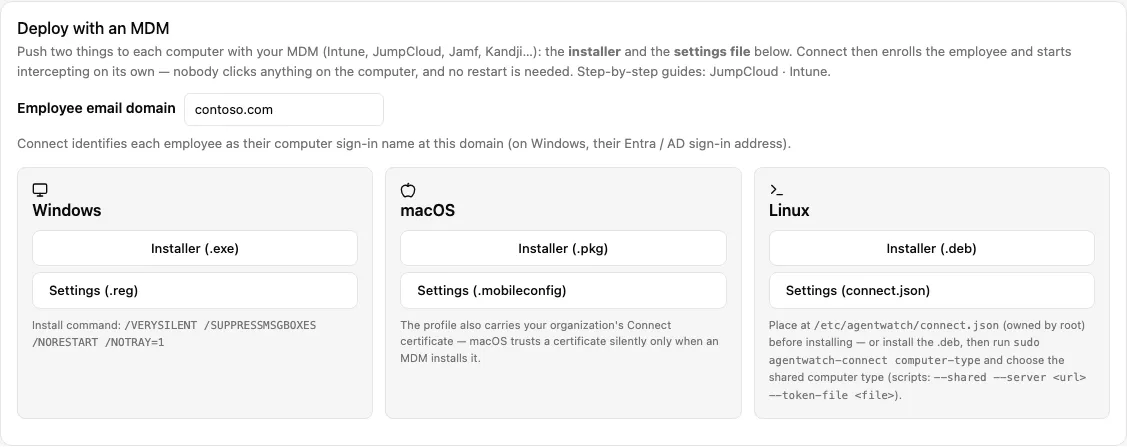
Prefer the downloaded settings file? Settings (.reg) on the same panel holds
ServerURL, EnrollmentToken and EmailDomain. You can attach it and run
reg.exe import agentwatch-connect.reg /reg:64 instead of step 1. That puts the
token in a file in your RMM’s library, so the secure variable is usually the better choice.
Step 2 — Run it on a pilot group
Section titled “Step 2 — Run it on a pilot group”-
Target two or three test computers first, ideally one Entra-joined PC and one where the employee’s sign-in name differs from their email.
-
Run the script. The RMM’s output should end with
AgentWatch Connect installed and running. -
On one of them, check the result:
Terminal window reg query "HKLM\SOFTWARE\Policies\AgentWatch\Connect" # ServerURL, EnrollmentToken, EmailDomainGet-Service AgentWatchConnect # Running& 'C:\Program Files\AgentWatch Connect\agentwatch-connect.exe' status -
In AgentWatch, open Agent Fleet. Within about a minute the computer appears Online, with the employee’s email, Connect version and CA trusted on.
-
On the test computer, open a new browser tab and ask a public AI assistant something harmless, such as
What is the capital of France?. It appears in Usage Insights under that employee within seconds.
The tray icon appears at the employee’s next sign-in and shows Connected. It only shows status. On a managed computer it has no off switch.
Step 3 — Roll out and keep it installed
Section titled “Step 3 — Roll out and keep it installed”- Widen the target in steps (one department, then everyone).
- Make it self-healing. Add the script to the policy that new computers
receive, and add a condition / monitor that alerts or re-runs it when the
service
AgentWatchConnectis missing or stopped. Running the script again is always safe: on an installed computer it only rewrites the settings and exits0. - Keep employees as standard users. Uninstalling needs administrator rights.
How do I do this in Pulseway?
Section titled “How do I do this in Pulseway?”Pulseway runs scripts through its agent on each computer, and by default as the system account. That matches what Connect needs. The same script works without changes. Pulseway differs from the generic steps above in three ways, and each needs one setting:
| Generic step | In Pulseway | What to watch |
|---|---|---|
| Secure variable | A script input named AW_ENROLLMENT_TOKEN, filled from a custom field |
Pulseway adds inputs as PowerShell variables at the top of the script, not as environment variables. The script reads both. The name must match exactly |
| Targets | A task with a system scope | A one-off run reaches only computers that are online. Schedule the task so new and offline computers are covered |
| Monitor and re-run | Enable Scheduling on the task (for example daily) | Re-running is safe: on an installed computer the script only rewrites the settings and exits |
Menu names below come from Pulseway’s help center as of November 2026. Pulseway renames screens from time to time, so look for the closest match.
1. Store the token in a custom field
Section titled “1. Store the token in a custom field”- In the Pulseway web app, open Automation → Custom Fields and create a
field, for example
AgentWatch enrollment token, of type text. - Set its value to the enrollment token from AgentWatch (Agent Fleet → Agent Connect Settings → Enrollment Token). If your Pulseway plan offers organization-level or global custom fields, use one, so every computer reads the same value.
Pulseway’s help center does not describe a “secret” or “masked” flag for custom fields or script inputs. Assume anyone with access to custom fields or script outputs in Pulseway can read the token. The script never prints the token, so it does not appear in the run output. If the token is exposed, click Regenerate token in AgentWatch and update the custom field. Computers that are already enrolled keep working.
2. Create the script
Section titled “2. Create the script”- Open Automation → Scripts, choose or create a category (for example
AgentWatch), and click Create Script. - Name it
Install AgentWatch Connect, open the Windows tab, enable the script for Windows, and select PowerShell as the type. - Under Inputs, click New. Name the variable
AW_ENROLLMENT_TOKEN, turn on Use custom field value, and choose the custom field from step 1. - Paste the script from Step 1 below
the lines Pulseway adds at the top. Change the two lines marked CHANGE.
Do not add a
param(...)block: Pulseway inserts lines above the script, and aparamblock must be the first statement, so the script would fail to parse. - Save.
3. Test on one computer, then on a pilot task
Section titled “3. Test on one computer, then on a pilot task”- Open one test computer in Pulseway, go to its Scripts page, and run
Install AgentWatch Connect. Open the execution under the latest runs to see the output. It must end withAgentWatch Connect installed and running.Every other branch of the script prints the reason it stopped, so read the output line rather than relying on a green or red status alone. - Check the computer in AgentWatch Agent Fleet, as in Step 2.
- Open Automation → Tasks → Create Task, add the script, and choose a system scope that holds only your pilot computers (a group or a tag). Run the task and check every computer in its execution Systems tab.
4. Roll out and keep it installed
Section titled “4. Roll out and keep it installed”- Widen the task’s scope to a department, then to every Windows computer.
- Turn on Enable Scheduling for the task, for example daily outside working hours. This installs Connect on computers that were offline or added to the scope later, and reinstalls it where someone removed it.
- Optional: if you use Pulseway’s service monitoring, add the
AgentWatchConnectservice so you are notified when it stops.
Prefer to push the installer from Pulseway?
Section titled “Prefer to push the installer from Pulseway?”Pulseway can store files in Automation → Managed Files (up to 500 MB per file
on Pulseway cloud; the installer is about 50 MB) and copy them to computers with
the Write File workflow action. Download the installer once from AgentWatch
(Agent Fleet → Deploy with an MDM → Windows → Installer (.exe)), upload it
to the User Defined folder, and write it to a fixed path such as
C:\Windows\Temp\AgentWatch\. Then replace step 3 of the script with that path:
$exe = 'C:\Windows\Temp\AgentWatch\AgentWatch-Connect-Setup-1.0.192-windows-x64.exe' # the file Write File placedif (-not (Test-Path $exe)) { Write-Output "Installer not found at $exe - run the Write File step first."; exit 1 }Keep the signature check: it is what proves the file is Iterate’s. Re-upload the file only for new computers; installed computers update themselves from AgentWatch.
Will my RMM work?
Section titled “Will my RMM work?”Pulseway is one example. Any tool that manages Windows computers through an agent can deploy Connect, including RMMs this page does not name. Check that it can do these five things:
| Your tool must be able to | Why Connect needs it | If it cannot |
|---|---|---|
| Run a PowerShell script as SYSTEM (Local System) | Installing a service and writing HKLM need administrator rights |
It cannot install Connect. Use Intune, a GPO startup script, or install by hand |
| Pass a value to the script (environment variable, script input, custom field or parameter) | The enrollment token stays out of the script text | Put the token in the script and restrict who can read it. Never pass it on Setup’s command line together with /LOG |
| Allow a run of 15 minutes or more | The download is about 50 MB | Push the installer as a file first, then run the script |
| Show the script’s output or exit code | You need to know which computers failed and why | Check Agent Fleet in AgentWatch instead: every computer that enrolled appears there |
| Re-run on a schedule, or on new computers | Covers offline, new and repaired computers | Re-run the task by hand after onboarding new computers |
If your tool delivers values in a way the script does not read (for example
{{token}} replaced in the text before the run), assign $Token from that
syntax in the script and keep the rest unchanged.
How do upgrades work?
Section titled “How do upgrades work?”Connect updates itself from your AgentWatch server, according to Agent Fleet → Fleet controls → Connect updates (everyone, selected users only, or paused). It installs an update only if it is signed by the same publisher as the Connect already installed. Nothing has to be pushed through the RMM. If you would rather control versions from the RMM, pause updates in AgentWatch, then run the installer with the same switches on a schedule. Setup upgrades in place and keeps the settings.
How do I uninstall Connect?
Section titled “How do I uninstall Connect?”Run as SYSTEM:
& 'C:\Program Files\AgentWatch Connect\unins000.exe' /VERYSILENT /SUPPRESSMSGBOXES /NORESTARTRemove-Item 'HKLM:\SOFTWARE\Policies\AgentWatch\Connect' -Recurse -Force -ErrorAction SilentlyContinueThe uninstaller removes the service, the hosts-file redirection and the Connect certificate. The second line removes the managed settings, which the uninstaller deliberately leaves. Remove the RMM policy too, or it reinstalls Connect on its next run. To stop interception everywhere without uninstalling, use Agent Fleet → Fleet controls → Pause for everyone.
Troubleshooting
Section titled “Troubleshooting”| RMM output or symptom | Cause | Fix |
|---|---|---|
AW_ENROLLMENT_TOKEN is empty |
The secure variable is missing, misspelled, or your RMM substitutes it into the text | Check the variable name, or assign $Token from your RMM’s own syntax |
AW_ENROLLMENT_TOKEN is empty in Pulseway |
The script input is named differently, is not linked to the custom field, or the custom field has no value for that computer | Name the input exactly AW_ENROLLMENT_TOKEN, turn on Use custom field value, and check the field’s value on that computer |
The term 'param' is not recognized or a parse error near the top (Pulseway) |
A param(...) block was added, and Pulseway’s inserted lines put it below other statements |
Remove the param block. The script takes its values from the input variable |
Access is denied writing the registry, or Setup fails, in Pulseway only |
PowerShell User Impersonation is on in Pulseway Manager → Settings → Runtime, so the script ran as a user, not as the system account | Turn impersonation off on those computers for this script |
| Pulseway task skipped some computers | They were offline when the task ran | Turn on Enable Scheduling for the task |
The underlying connection was closed / Could not establish trust relationship |
Windows does not trust the AgentWatch server’s certificate, or TLS 1.2 is blocked | Trust your internal CA on the computers (GPO or RMM) before this script, or use the file-attachment variant |
Unable to connect to the remote server |
Firewall or proxy blocks the computer → AgentWatch | Allow 443 to your AgentWatch address. Behind an explicit proxy, also write UpstreamProxy (see Connect on Windows) |
Signature check failed: NotSigned or HashMismatch |
The file was altered or truncated in transit (often a proxy rewriting downloads) | Download again, or attach the installer to the script |
Setup failed with exit code … |
Setup stopped. Codes 2 and 5 mean the install was cancelled, for example by a requirement check such as an unsupported Windows build | Read C:\Windows\Temp\AgentWatch-Setup.log; the reason is near the end |
| Computer in Agent Fleet shows the wrong person | The computer’s sign-in name at EmailDomain is someone else’s address |
Make sure Entra/AD UPNs match employees, or have the employee approve the sign-in code |
| Employee sees a sign-in code | No employee in AgentWatch matches their UPN or name@domain |
Provision them (SCIM, CSV or Add), or let them approve the code. With SSO Auto-create users, the approval creates them |
| Not in Agent Fleet after five minutes | Service not running, or wrong ServerURL |
Get-Service AgentWatchConnect, then C:\ProgramData\AgentWatch\logs\agent.log |
Sources and references
Section titled “Sources and references”- Connect on Windows — every Setup switch, registry value, the ADMX template and logs
- Endpoint Enrollment — what Connect does and how a computer is tied to an employee
- Deploying Connect with Microsoft Intune · with JumpCloud
- Self-hosted rollout with Microsoft 365 — the whole rollout in order
- Pulseway — Configuring automation tasks · Introduction to custom fields · Managed Files · PowerShell user impersonation (scripts run as the system account unless this is turned on; leave it off for Connect)
- Microsoft — Get-AuthenticodeSignature